We built these for our own work on client networks. ECX Ping, ECX Console, and ECX-Clip are free Windows utilities, digitally signed by ECXSystems LLC. ECX Containers is a free Firefox extension, signed by Mozilla. None of them need an account.
A network monitor that puts each target in its own tab, graphs it live, and keeps the history through a reboot. When someone says the connection was slow at 2:15, you can show which hop dropped packets.
Endpoint ping or per-hop traceroute for each target, at intervals from 500 ms to 5 s or a custom value.
Native ICMP. Needs no administrator rights and doesn't call ping.exe or tracert.
History stored locally with 1-minute rollups and a retention period you choose.
Hop details: reverse DNS, address scope, and ASN and location for public IPs. Private addresses never leave the machine.
Alerts on latency, loss, or jitter thresholds, with desktop notifications.
PNG and CSV export for tickets and carrier escalations.
Dashboard of every ping and traceroute with a 15-minute sparkline, plus named pages that stack the graphs you pick.
IP, port, and DHCP scans beside monitoring, with offline MAC vendor lookup and a flag for DHCP servers you haven’t authorized.
Windows 10 / 11 · x64Signed by ECXSystems LLCUpdated Oct 19, 2026
Per-user install with no admin prompt; your data is kept if you uninstall. Installed copies update themselves in the background. The portable build runs from one file but unpacks on every launch, so it starts slower.
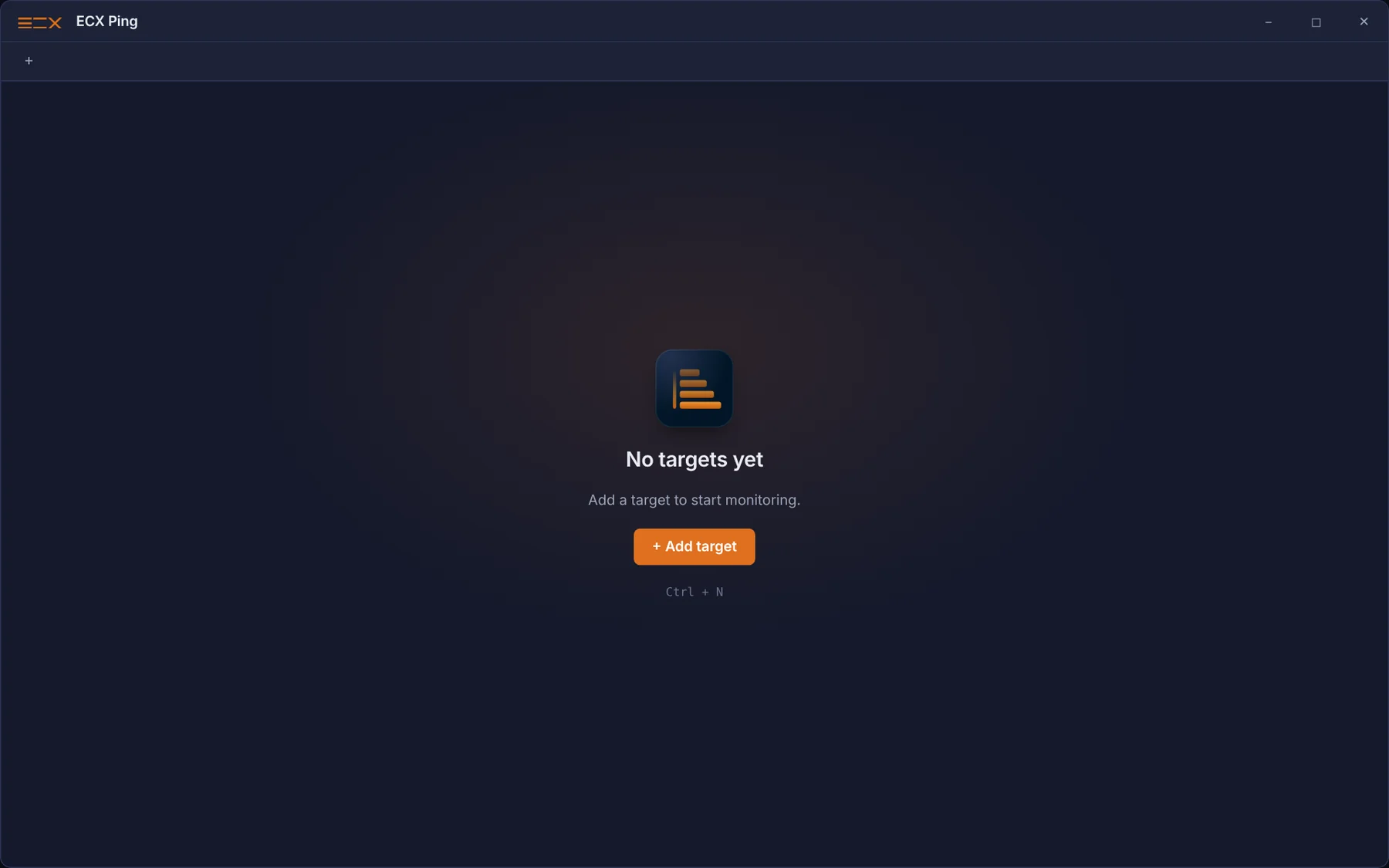
Start ECX Ping and choose Add target, or press Ctrl+N. Each target gets its own tab, and you can drag tabs to reorder them.
Enter a name and a hostname or IP, then choose how often to probe. Use Endpoint to watch the destination, or Per-hop traceroute to graph every router on the path.
The summary cards show average latency, loss, jitter, and the current reading. Loss shows as red marks under the graph. Double-click any hop for reverse DNS, ASN, and location.
Save a PNG snapshot of the graph with its stats, or export the history as CSV, to attach to a ticket or send to a carrier.
Start ECX Ping and choose Add target, or press Ctrl+N. Each target gets its own tab, and you can drag tabs to reorder them.
What’s new in v1.2.6
Dashboard. One table lists every ping and traceroute with its status, latency, loss, and a 15-minute sparkline, under a summary of what’s live, losing packets, or unreachable. Check the targets you want, name the page, and click Show graphs to stack their charts together.
IP scan. Scan an adapter’s subnet or any range up to 1,024 addresses. On the local subnet it fills in each MAC address and vendor.
Port scan. TCP scan of one host with common-port and 1–1024 presets, or your own list. Double-click an open port to see its banner.
DHCP check. Lists every DHCP server that answers on your adapters and marks any server that isn’t on your authorized list.
Registration that gets through (1.2.5). If sending your details fails, ECX Ping keeps retrying. Update checks report the app version.
Optional registration (1.2.4). On first launch you can add your name, company, and email, or skip it. Change it any time from About.
Good to know
Runs on
Windows 10 or 11, 64-bit
Admin rights
Not needed, to install or to run
Your data
Stored on your PC with the retention you choose, and kept if you uninstall
In the background
Minimize to the tray and keep monitoring
Scans
Run beside monitoring, with results exportable to CSV; MAC vendors come from a built-in database that works offline
Shortcuts
Ctrl+N add a target · F1 user guide · Esc close a dialog
ECX Console
v0.6.2
SSH, Telnet, and serial sessions, organized by customer.
A tabbed terminal with a saved session tree. Folders hold each customer's devices, and everything runs inside one window with no separate PuTTY windows to manage.
SSH, Telnet, and serial in tabs, with a folder tree and a list of recent sessions.
PuTTY-grade SSH..ppk keys of every common version, Pageant or the OpenSSH agent, one-time-code prompts, and a debug log with a legacy-algorithm retry when a connection fails. Open in PuTTY is one click away.
Import saved sessions from PuTTY, SecureCRT, or MTPuTTY.
Credentials encrypted with Windows DPAPI, plus an optional master password for shared jump boxes.
Built-in SFTP with a two-pane file browser and a transfer queue.
Jump hosts, login commands, and broadcast to send the same keystrokes to several tabs at once.
Find, color schemes, and character sets. Search the buffer, pick one of eight schemes, and set the terminal type and character set per session for older gear.
Session logging to raw, text, or HTML, with optional timestamps. It’s off until you turn it on for a session, and keystrokes are never recorded.
AI assistant built in. Ask about an error or an open tab using Claude, OpenAI, Grok, or your own endpoint, with per-tab access you control and every action logged. Save standing instructions, or dictate your question.
Local PowerShell tabs with command marks and one-key elevation, next to your remote sessions.
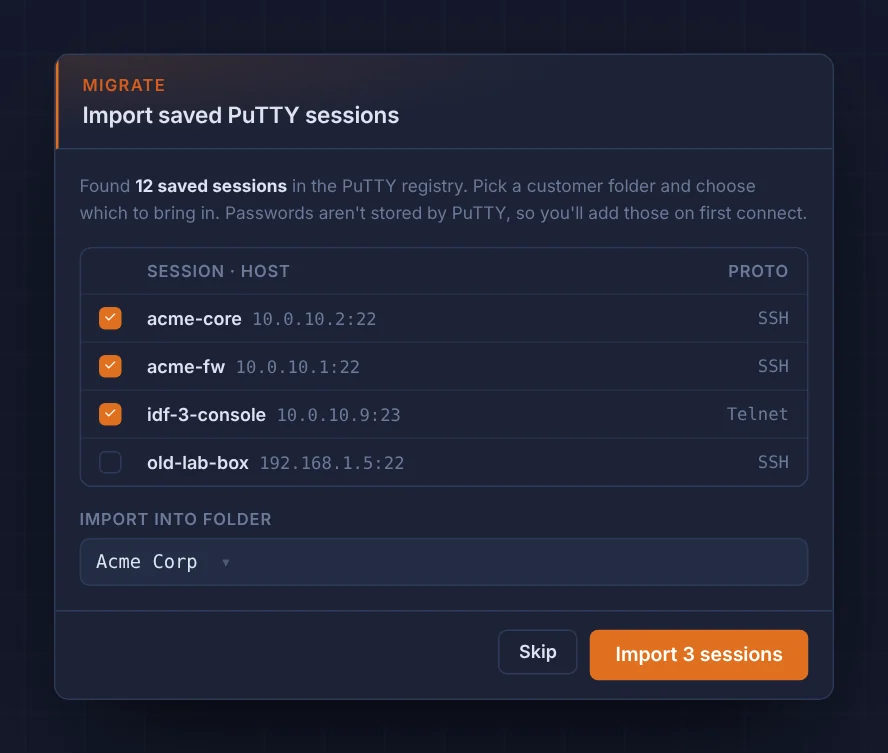
On first run, ECX Console finds sessions saved in PuTTY. Choose which to import and the customer folder they go in. PuTTY doesn't store passwords, so you add those the first time you connect.
Choose SSH, Telnet, or Serial, then enter the host and username. Authenticate with a password, which is encrypted with DPAPI, an OpenSSH or PuTTY .ppk key, or a key held by Pageant or the OpenSSH agent.
Double-click a session in the tree to open it in a tab. The status bar shows the connection and logging state. Tabs stay connected while you switch between them.
Right-click a connected session and choose Open SFTP. Drag files between the local and remote panes, and track progress in the transfer queue.
Press Ctrl+Shift+A or click Explain last error. The assistant reads the tab you're in and tells you what it sees. Any command it wants to run waits for your approval, and every step is logged.
Press Ctrl+Shift+T for a local PowerShell tab beside your remote sessions; add Alt to run it as administrator. Marks in the margin show each command, red for the ones that failed. Jump between them with Ctrl+Shift+Up and Down.
On first run, ECX Console finds sessions saved in PuTTY. Choose which to import and the customer folder they go in. PuTTY doesn't store passwords, so you add those the first time you connect.
What’s new in v0.6.2
A roomier assistant. One compact header and a one-line prompt leave more space for the chat. Pick a width preset, or expand the panel over the terminals for a long reply; Esc docks it again.
Replies you can scan. An explanation can open with a short verdict, a table of facts, and a suggested command that still waits for your approval.
Choose the microphone for dictation; ECX Console remembers your choice.
Dictate to the assistant (0.6.1). Press Ctrl+Shift+M to speak your question. Speech is recognized on your PC.
Standing instructions (0.6.1). Save a custom prompt, or start from a template for FortiGate, switches, Linux, Windows, routing, outages, or changes.
Upgrading from 0.5.x? (0.6.0) Session logging turns off for every session, so turn it back on where you need it. Imported PuTTY hosts ask you to trust their key once more.
Hardened (0.6.0). Sandboxed windows, updates checked for the ECXSystems LLC signature, a master password enforced by the app itself, and keystrokes never written to session logs.
SSH that tells you why (0.6.0). A failed connection explains the error, shows the debug log, and offers a legacy-algorithm retry or Open in PuTTY.
Good to know
Runs on
Windows 10 or 11, 64-bit
Your passwords
Encrypted with Windows DPAPI; optional master password
Brings over
Saved sessions from PuTTY, SecureCRT, and MTPuTTY
AI providers
Anthropic, OpenAI, xAI Grok, or an OpenAI-compatible endpoint (local models too)
Assistant logs
Saved as Markdown, naming the provider and model
Session logs
Off by default; keystrokes are never recorded, and saved passwords are masked
License
GPL-3.0
ECX-Clip
v1.3.11
A clipboard shelf for people who live in consoles.
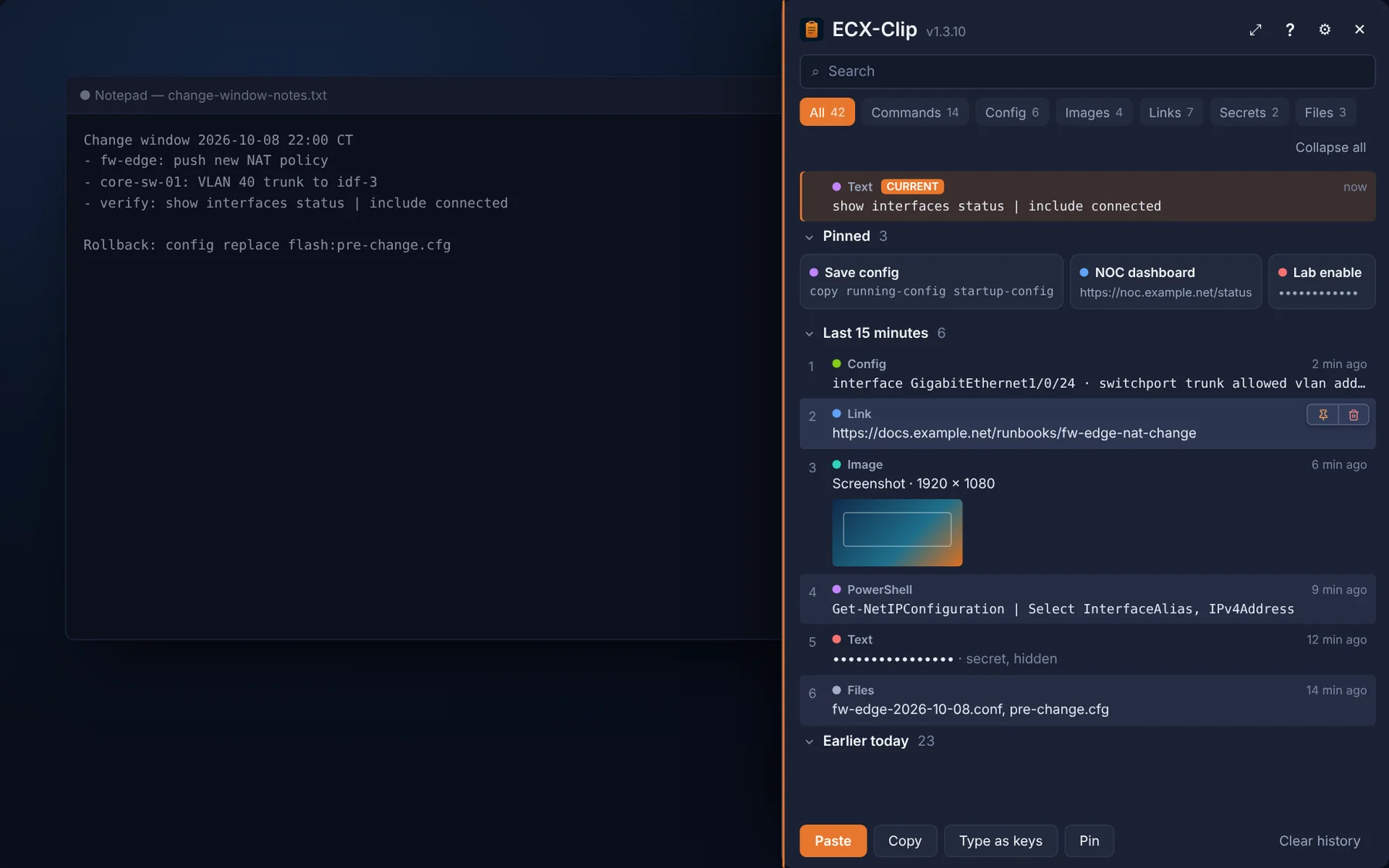
Press Ctrl+Shift+V to see everything you've copied today: commands, config blocks, links, screenshots, and files. It's grouped, searchable, and one key away from pasting. For KVMs and consoles that ignore Ctrl+V, ECX-Clip can type the clip as keystrokes instead.
Live current-clipboard panel at the top of the shelf.
Press Ctrl+Shift+V anywhere. The current clipboard is at the top, followed by your pins and your history grouped by time. Hover a row to pin or delete it, and double-click to paste.
Search or filter by type, then press Ctrl+E to open the reader. Select part of a long config block and choose Copy selection to take only the lines you need.
KVM, iDRAC, iLO, and serial consoles often ignore paste. Press Ctrl+Shift+T or choose Type as keys, click into the console, and ECX-Clip types the clip for you.
Press Ctrl+Shift+V anywhere. The current clipboard is at the top, followed by your pins and your history grouped by time. Hover a row to pin or delete it, and double-click to paste.
What’s new in v1.3.11
Optional registration. On first launch you can add your name, company, and email, or skip it; it asks once more after a week. Update checks include an anonymous install ID with no personal data.
C copies the row you’re on (1.3.10). Press C on a highlighted row to copy it, no click needed.
Faster All view (1.3.9). A long history loads as you scroll, so the shelf slides open quickly.
Filters and time groups (1.3). Narrow the shelf to commands, config, images, links, secrets, or files.
Pins that stay in order (1.3). Give a pin a label and drag it, or press Alt+Shift and an arrow key, to reorder.
Undo for 5 seconds (1.3). Deleting a clip or clearing history can be taken back.
Good to know
Runs on
Windows 10 or 11, 64-bit
Your history
Stored only on your PC; secrets stay masked until you reveal them
Updates
Installed copies update themselves from signed releases
Starts with
Windows, if you choose, and waits in the tray
Shortcuts
Ctrl+Shift+V shelf · Ctrl+Shift+T type as keys · Ctrl+E reader
ECX Containers
Firefox extension
Each Microsoft 365 tenant in its own Firefox container.
A labeled, color-coded container for every tenant, so a tab always shows which customer you’re signed in as. Mozilla signs the extension. It isn’t in the public add-on store, so you install it from this page, and installed copies update themselves.
One container per tenant, with its own name and color, so cookies and sessions stay apart.
Install ECX Containers with the button on this page. When Firefox asks, choose Continue to Installation, then Add.
After that, the extension updates itself. You don’t install new versions by hand.
Good to know
Runs in
Firefox 128 or later
Also needs
Firefox Multi-Account Containers
Signed by
Mozilla. It isn’t listed in the public add-on store, so this page is the install link
Updates
Installed copies check this site about once a day and update themselves
Your tenants
The list of tenants is not on this page. Your team gets it separately
Before you install
Installer or portable, and how to verify.
Installer or portable?
Use the installer for daily use. It installs per user, needs no admin rights, launches faster, and updates itself. Use the portable .exe to run a tool from a USB stick or jump box without installing it.
Verify the signature
Every build is Authenticode-signed by ECXSystems LLC and timestamped. To check a download in PowerShell, run Get-AuthenticodeSignature .\ECX-*.exe. The status should be Valid.
Your data stays local
For the Windows tools, sessions, history, and clipboard contents stay in your Windows profile. Apart from update checks, the only outside request is ECX Ping’s ASN and location lookup for public IPs, which you can turn off in Settings.
ECX Containers
Install it from this page in Firefox 128 or later, after Firefox Multi-Account Containers. Firefox asks to add the extension instead of saving a file. It updates itself.
Want these rolled out across your team?
ECX clients get deployment, preconfigured session trees, and direct engineering support for every tool on this page.